
PowerSchool Help
District Code for mobile app is N-N-L-W (all caps)
In an effort to simplify PowerSchool access and improve communication between the schools and parents, there is now a single login through PowerSchool. Once parents create their account they will be able to:
- access information for all of their children from a single account (instead of multiple sign-ins);
- have control over how they receive alerts; and,
- should they forget their username or password, they can request it themselves online (no longer have to contact the school directly).
How to Create your PowerSchool Single Sign On Account
STEP ONE) Contact your child’s school and request your students Access ID and Access Password. Please remember, PowerSchool passwords ARE case sensitive:
Southeast Elementary School: 620-396-8211
Southeast Junior High: 620-457-8315
Southeast High School: 620-457-8365
STEP TWO) Go to https://usd247.powerschool.com/public/home.html
DO NOT use the Access ID and Password to try to login!
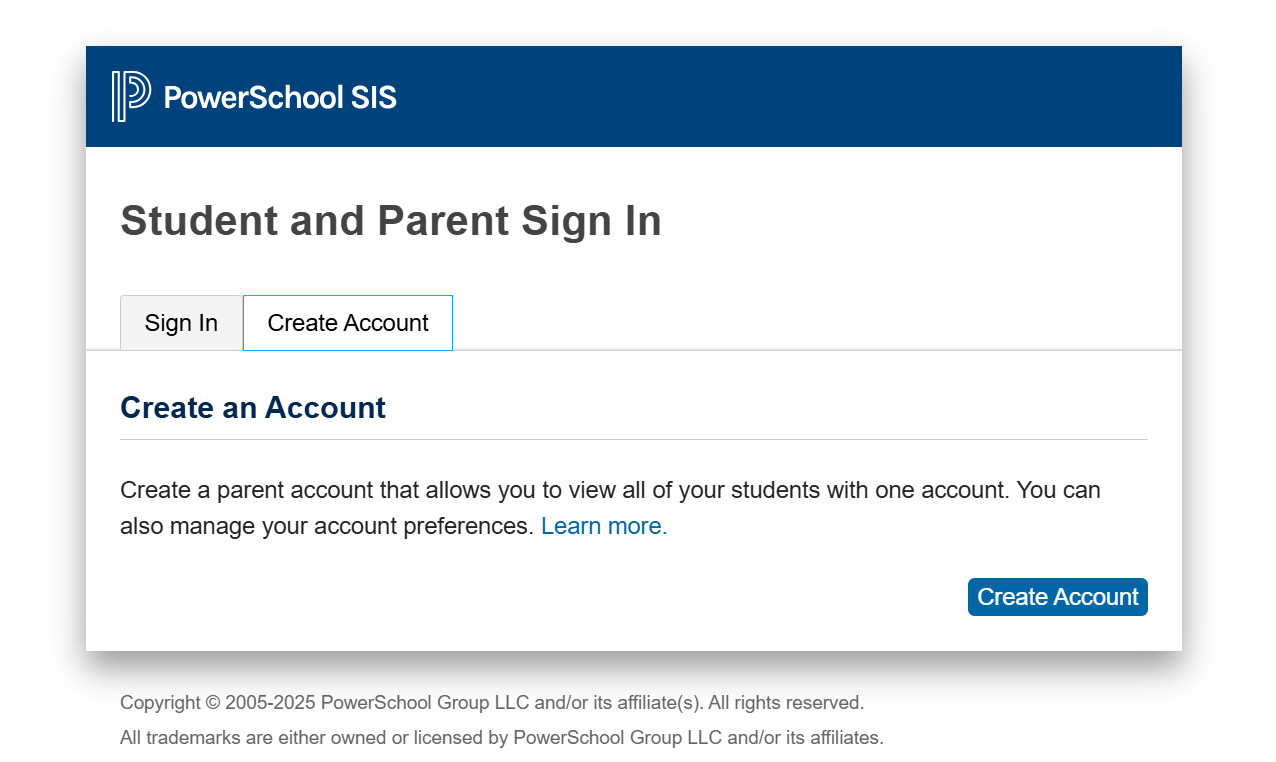
STEP THREE) Click the blue “Create Account” button in bottom right corner.
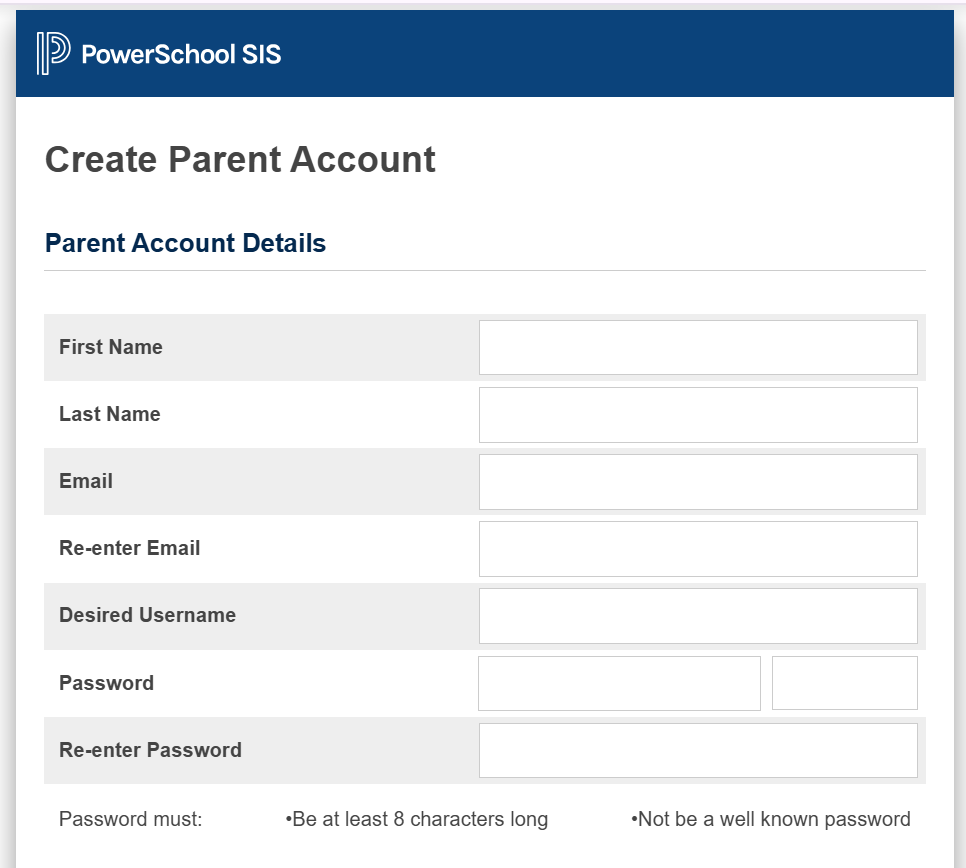
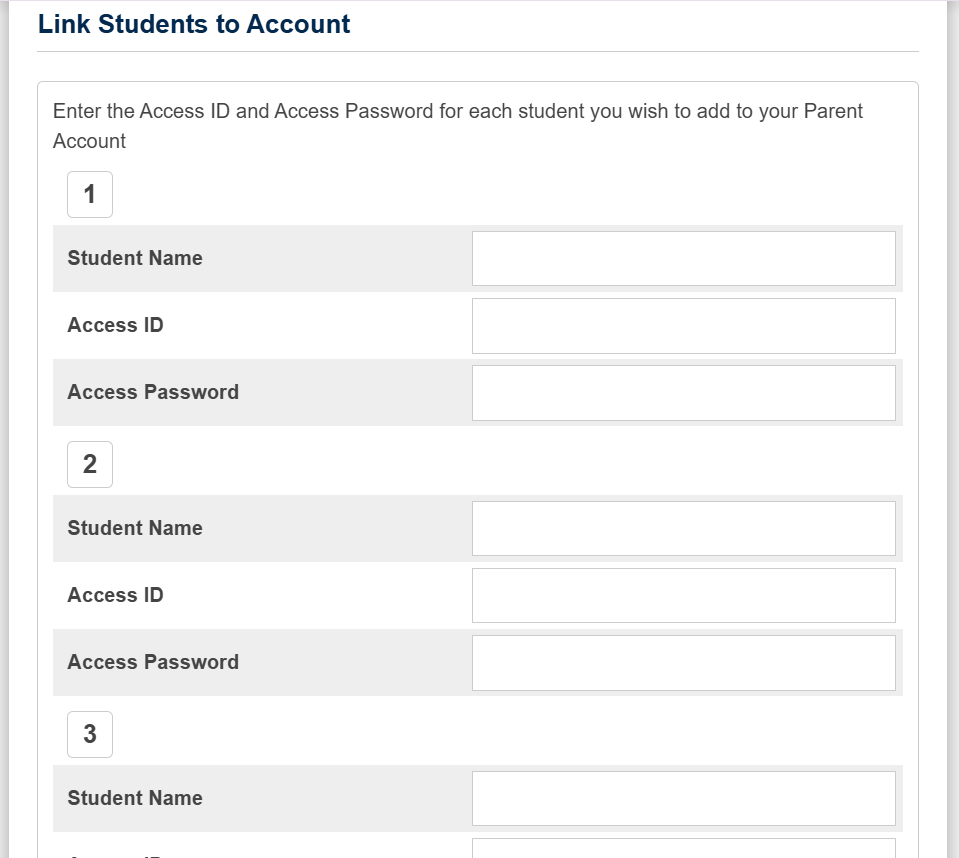
STEP FOUR) Fill out the Create Parent Account form. On the Link Students to Account form for “Student Name” you only have to enter your child’s first name. If you only have one child at Southeast and you want to use the same Access ID and Password, this is where you input it. (You can enter up to 7 students.) Again – the passwords are case sensitive:
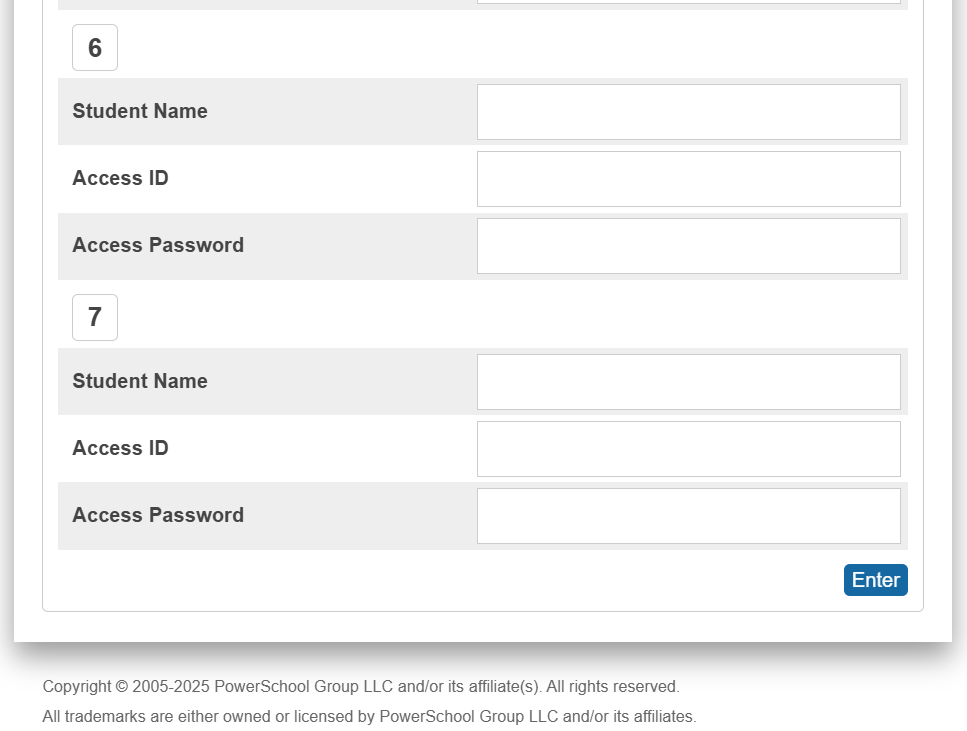
STEP FIVE) Click the “Enter” button.
STEP SIX) A new login screen will appear. Log in using your new username and password that the school initially provided.
Change how you receive alerts
PLEASE NOTE: While users now only have one sign in, PowerSchool still treats each of your children separately so you still must update information for EACH CHILD.
STEP ONE) Log in to PowerSchool: http://powerschool.usd247.com/public
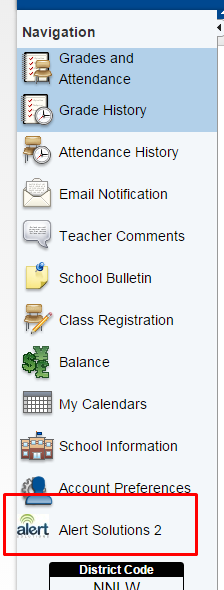
STEP TWO) In the left menu click “Alert Solutions 2” – This may take 2 or 3 minutes to load.
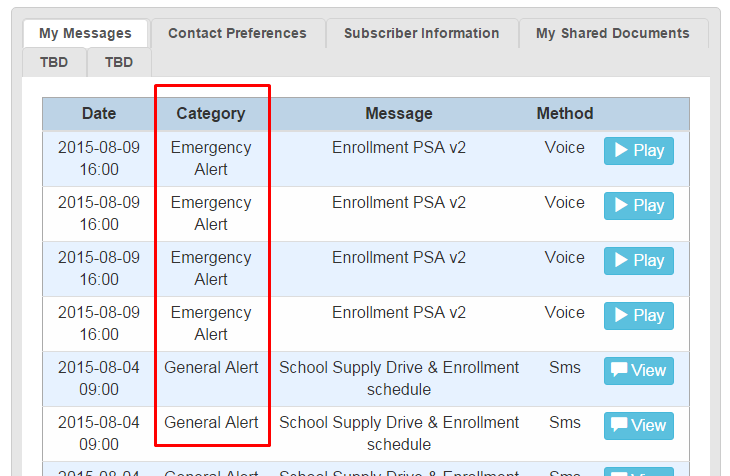
The first page you will see is “My Messages”. These are the most recent messages sent to your account that you should have received.
Notice that there are multiple types of Categories. These will be addressed later.
STEP THREE) Click the “Subscriber Information” tab for the first child.

STEP FOUR) Make any necessary changes to the contact information listed. NOTE: If a phone number is listed multiple times only ONE alert will be sent to it. The new service recognizes duplicate numbers and ignores them.

STEP FIVE) Scroll to the bottom of the page and click the green “Save Preferences” button.
STEP SIX) Click the “Contact Preferences” tab.

STEP SEVEN) Scroll down until you see the Categories. Messages can be received via Phone (voice), Email or SMS (text).
- Emergency Alerts – For emergency situations only. They will be sent to EVERY CONTACT because administrators deemed this message important enough that it is to go out by every means necessary because it is something you need to know right now. We hope to never use the Emergency Alerts. PLEASE NOTE: The Enrollment PSA sent on August 9, 2015 was a test. Enrollment notices will no longer be sent as an Emergency Alert. They will be a General Alert.
- General Alerts – Intended to be specific to your child or to inform you about something going on school or district-wide frequently asked about (such as school carnivals and homecomings). You will receive notices and reminders about anything going on with their grade level, such as a field trip running ahead/behind schedule, or Activities they are a part of (clubs & sports) – meetings, first practice, games. Again, you will occasionally receive a reminder about something going on district-wide that may interest your family, such tryouts and fundraisers, but you will no longer get notifications about every event and activity going on. District-wide notifications about sporting events are being limited to Varsity home openers, Homecoming and Senior Nights.
- School Closure – How to be contacted if school is called off or let out early. Please keep in mind these could go out at ANY TIME. We will try to provide as much notice as possible.
- Attendance and Low Lunch Alerts – Automated reports to let you know if your student did not show up at class (and the school was not informed) or your students Breakfast/Lunch balance is getting low.
- Fundraising Alerts – not used… these will be a part of the General Alerts.
Drag and drop the numbers/emails you want notifications to be sent to – the left column is for a voice/phone call, the middle column is for emails, and the right column is for SMS/text messages:

STEP EIGHT) Click the green “Save Preferences” button.
STEP NINE) Be sure to repeat this process for each of your children to make sure you get all messages relating to each of them. After saving, click the tab for the next child in the top left-hand corner.
Still need help?
Please email your question to dhamblin@usd247.com or call 620-457-8350 and ask for De Hamblin.
 USD 247 Southeast Lancers